The Prefabs Module
The Prefabs module is the heart of the plugin. It’s a floating icon widget that lives in your rack; right-click it to open a cascading menu over everything you can drop into a patch — your saved prefabs, your local patches, prefabs bundled with other plugins, cloud patches, and the full 600+ module library.
The widget
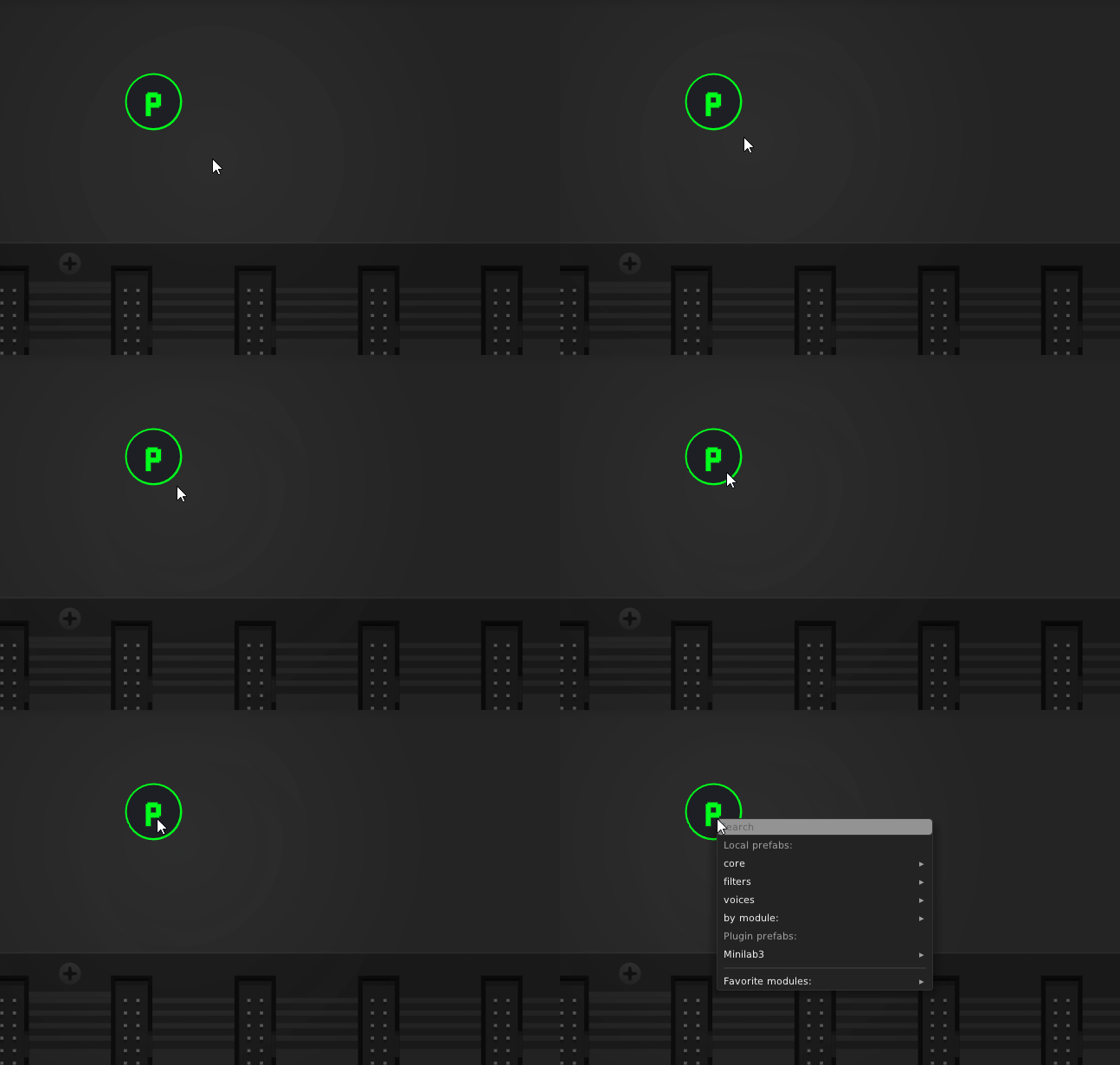
Add it from the rack’s right-click menu (Prefabs → Prefabs). The widget itself is small and unobtrusive:
- Click the widget to open the menu at the cursor.
- Right-click for the menu plus settings.
- Drag the widget to reposition it.
Because indexing your prefabs, patches, and the module library can touch a lot of files, that work runs on a background thread — the widget and menu stay responsive while the index builds and refreshes.
Browsing the menu
The menu is a cascade. The top level groups everything you can insert:
- Prefabs — selections you’ve saved, organized by group and tag.
- Patches — your local
.vcvpatch files, ready to merge in. - Plugin prefabs — prefabs shipped by other installed plugins.
- Cloud patches — patches pulled from the network.
- Modules — the entire library, browsable by plugin or by module.
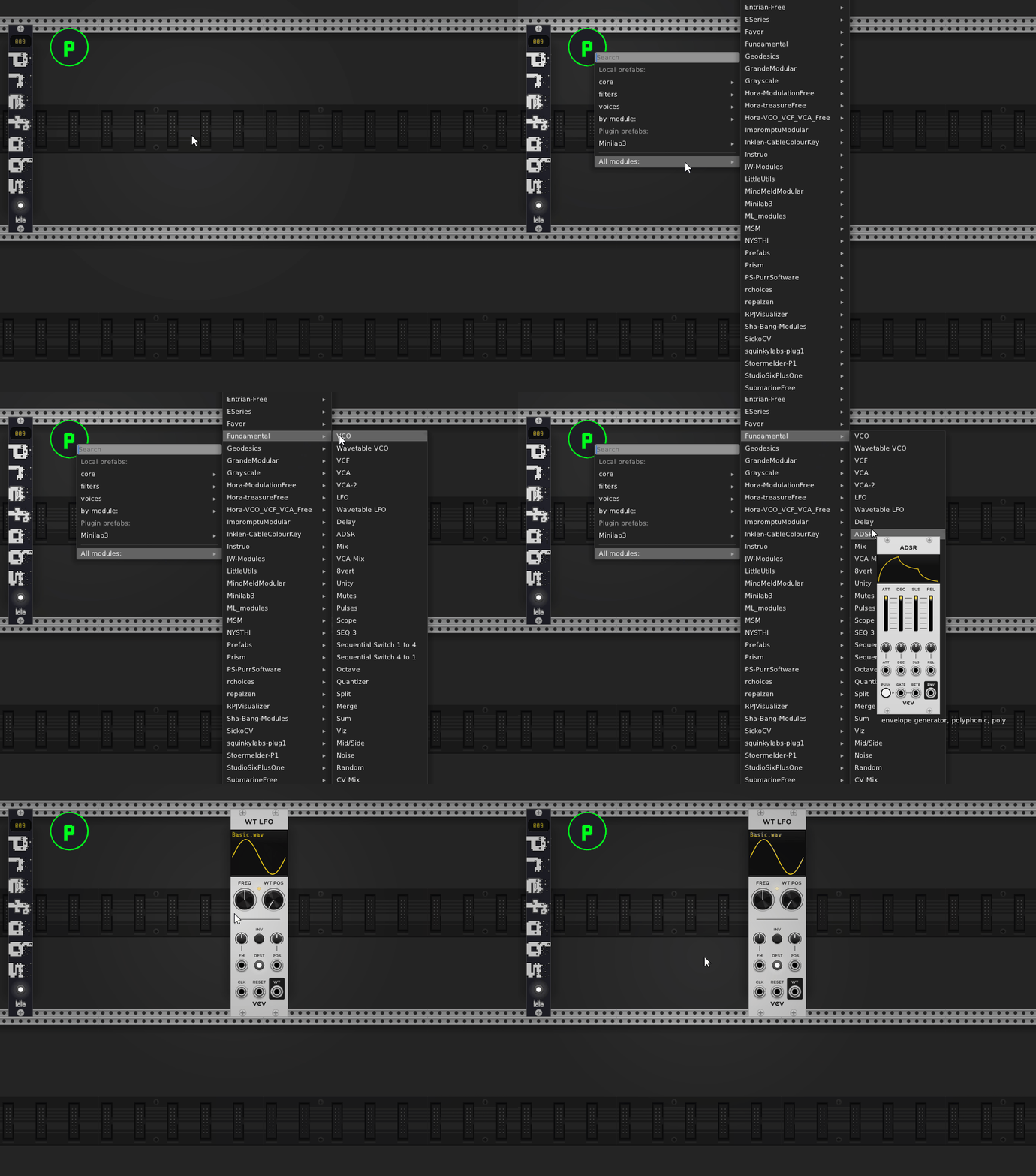
You can navigate by group, tag, module, or plugin, drilling down until you reach the entry you want.
Inserting
Every entry supports two gestures:
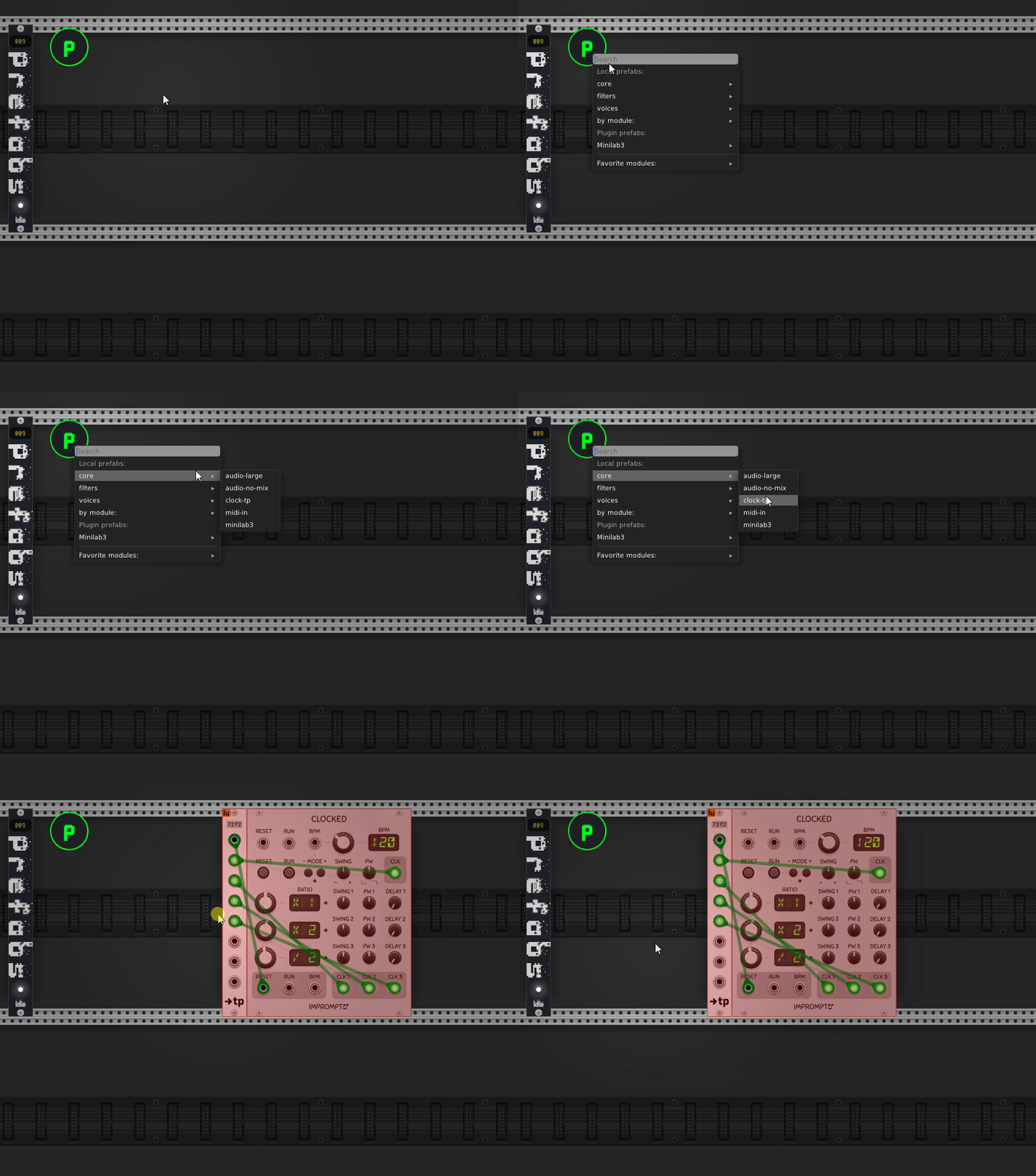
- Click — insert the prefab/module at the mouse position immediately.
- Drag — drag the entry out of the menu and drop it exactly where you want it on the rack.
Saving prefabs
To turn a group of modules into a prefab:
- Box-select the modules you want (including the cables between them).
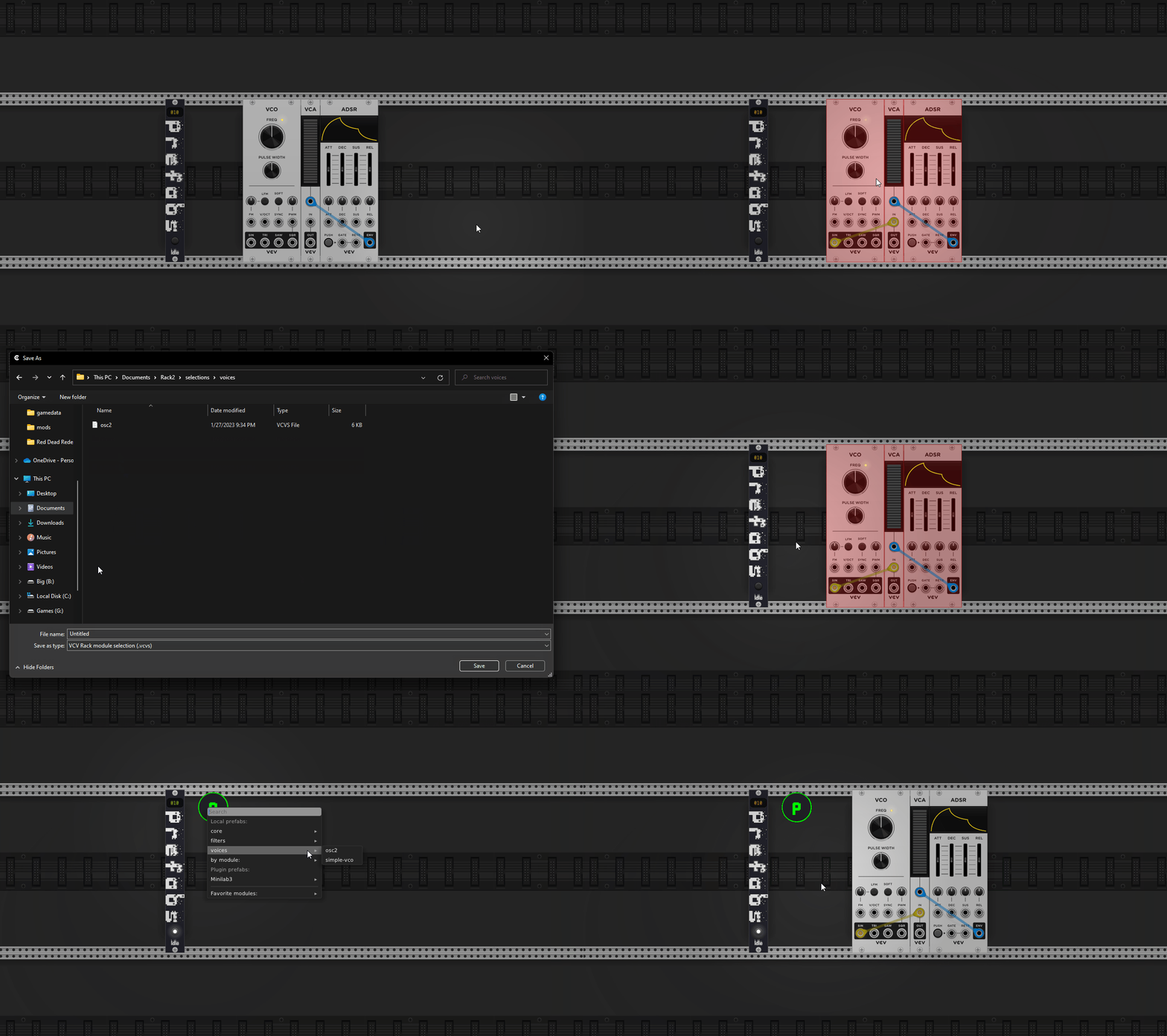
- Right-click the widget → Save selection as prefab.
- Name it, and optionally assign a group/tag so it’s easy to find later.
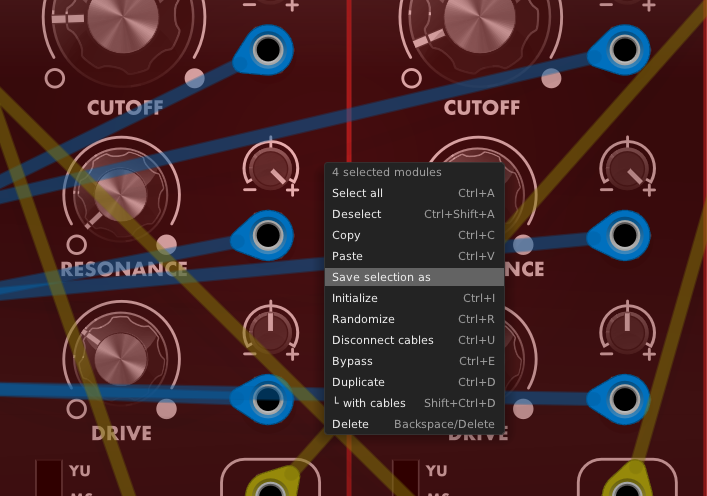
The prefab captures the modules, their parameter values, and the internal cabling, so the whole sub-patch comes back wired exactly as you left it.
Searching
Open the menu and just start typing — search filters across your prefabs, patches, and the module library in real time.
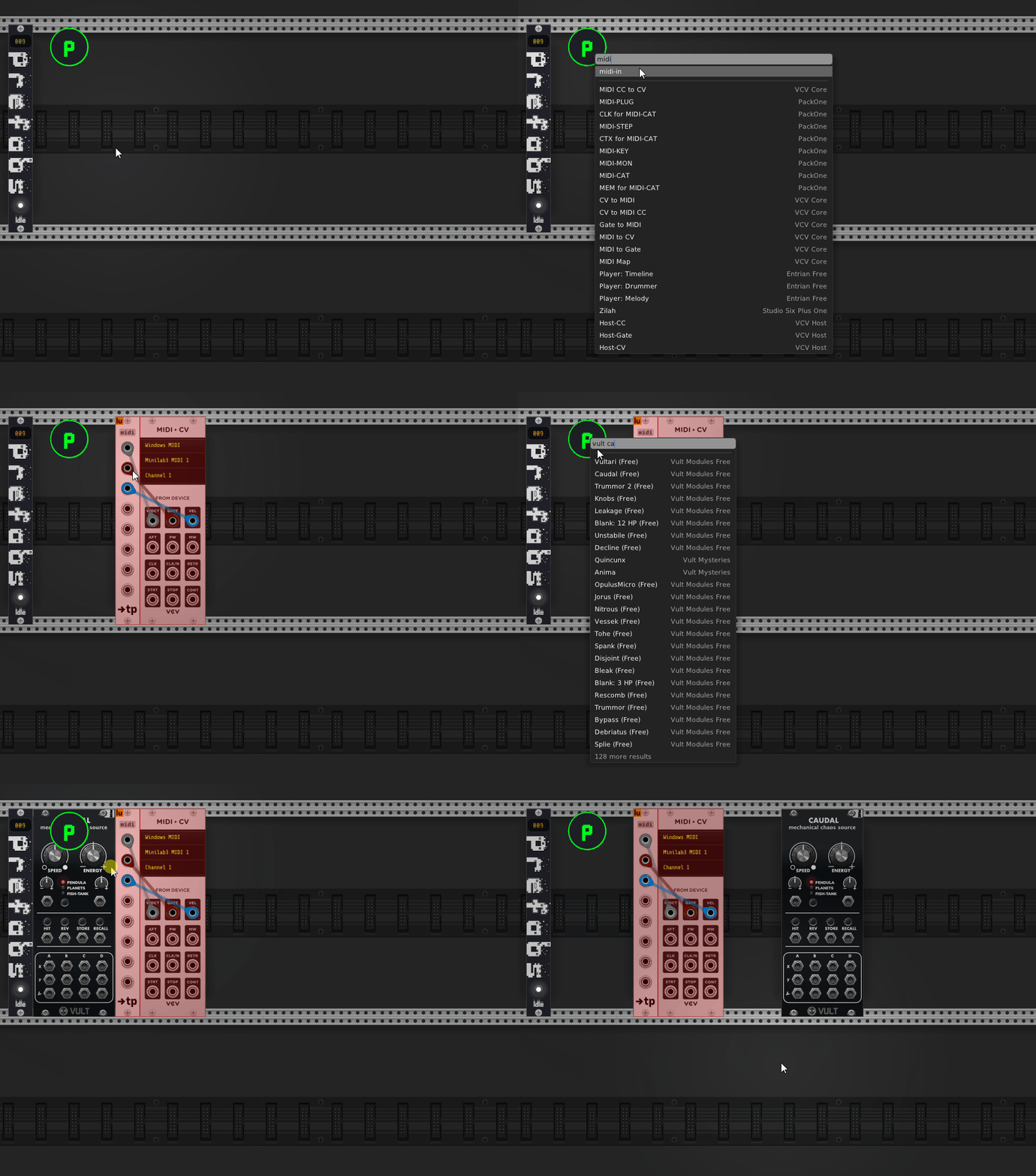
Results update as you type, so you can go from “I want a reverb” to a placed module in a couple of keystrokes.
Favorites
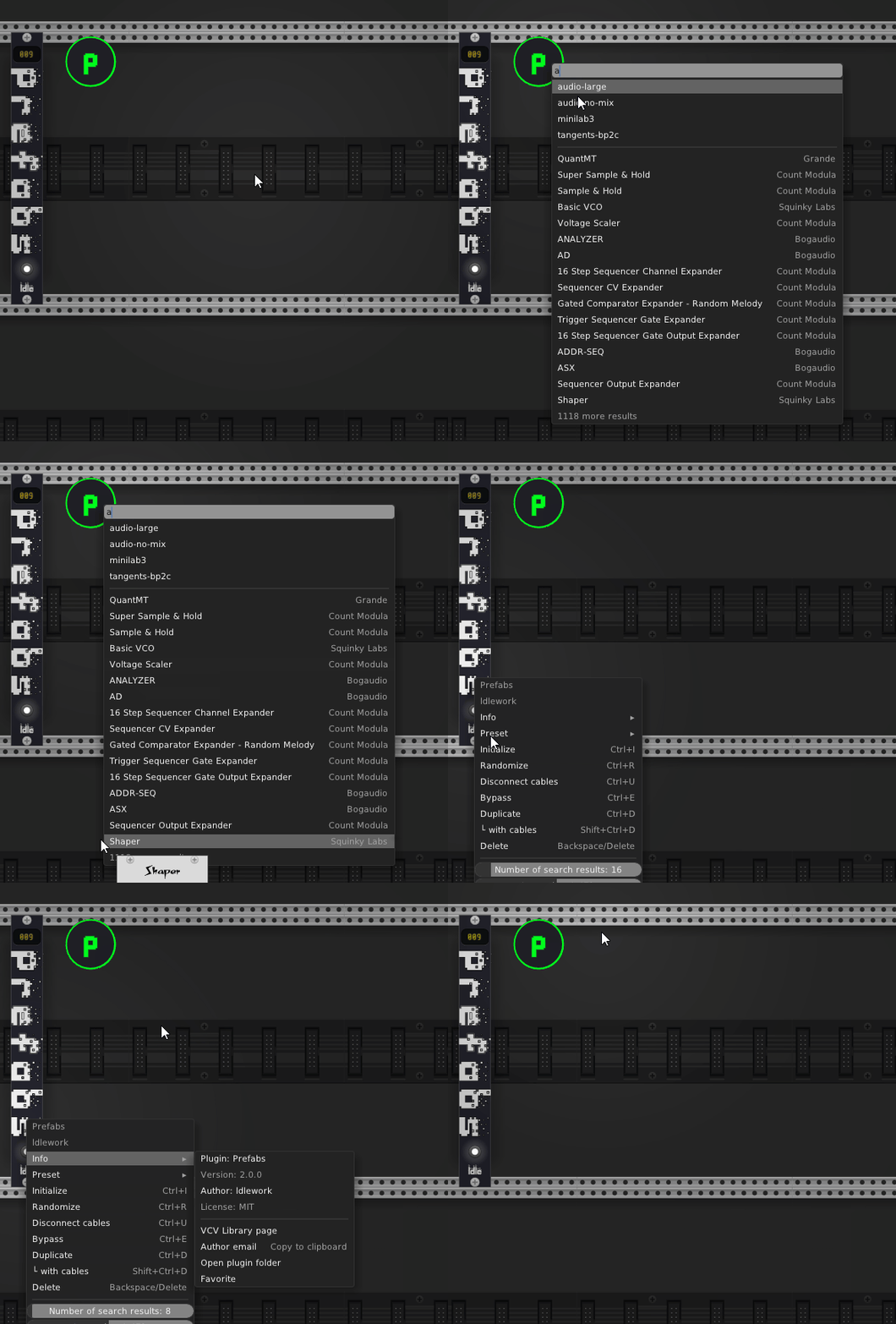
Mark the things you reach for most as favorites so they float to the top:
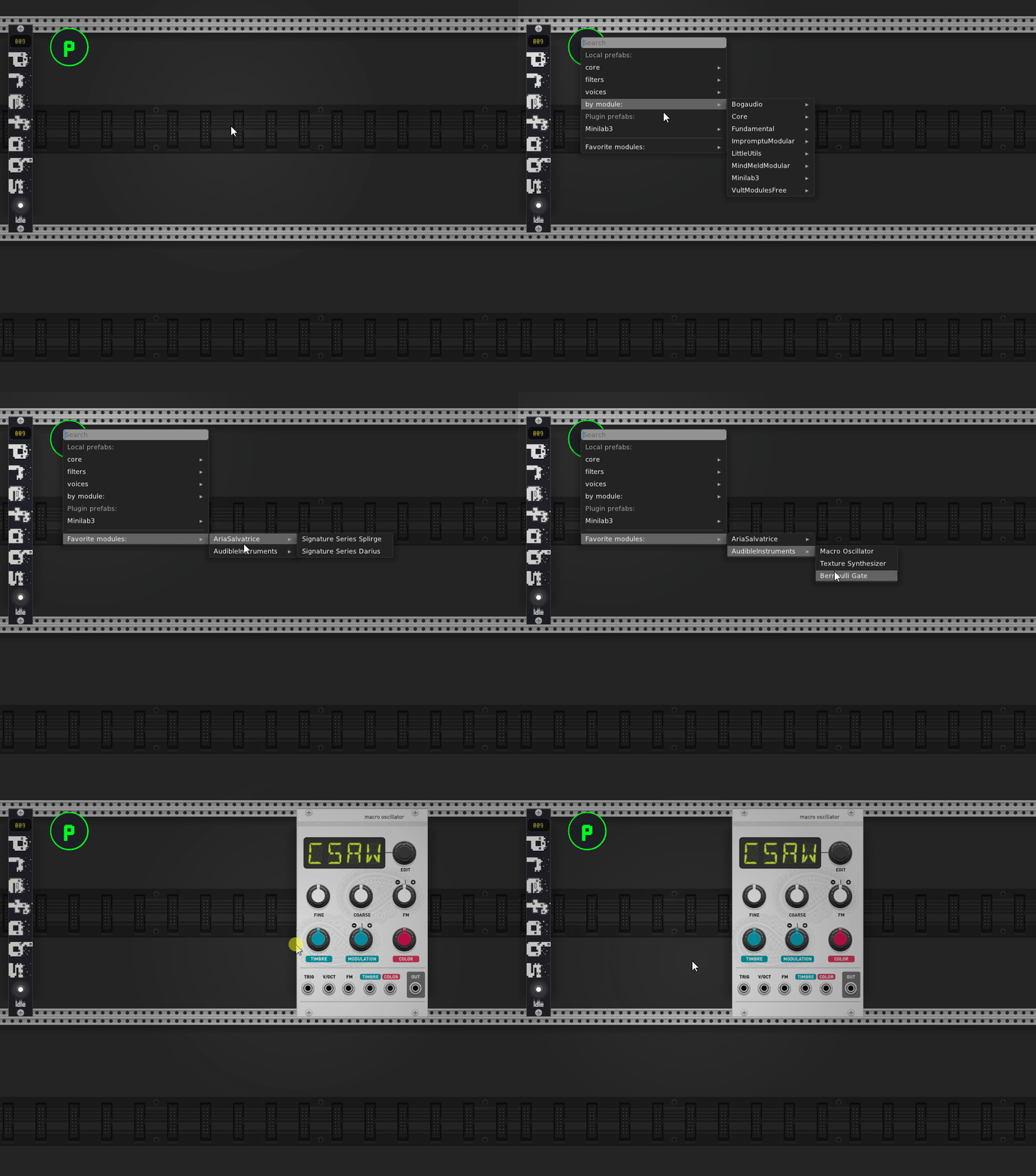
Hold Ctrl while browsing to expand favorites across the full module library, not just your saved prefabs — so your most-used modules from anywhere are always a click away.
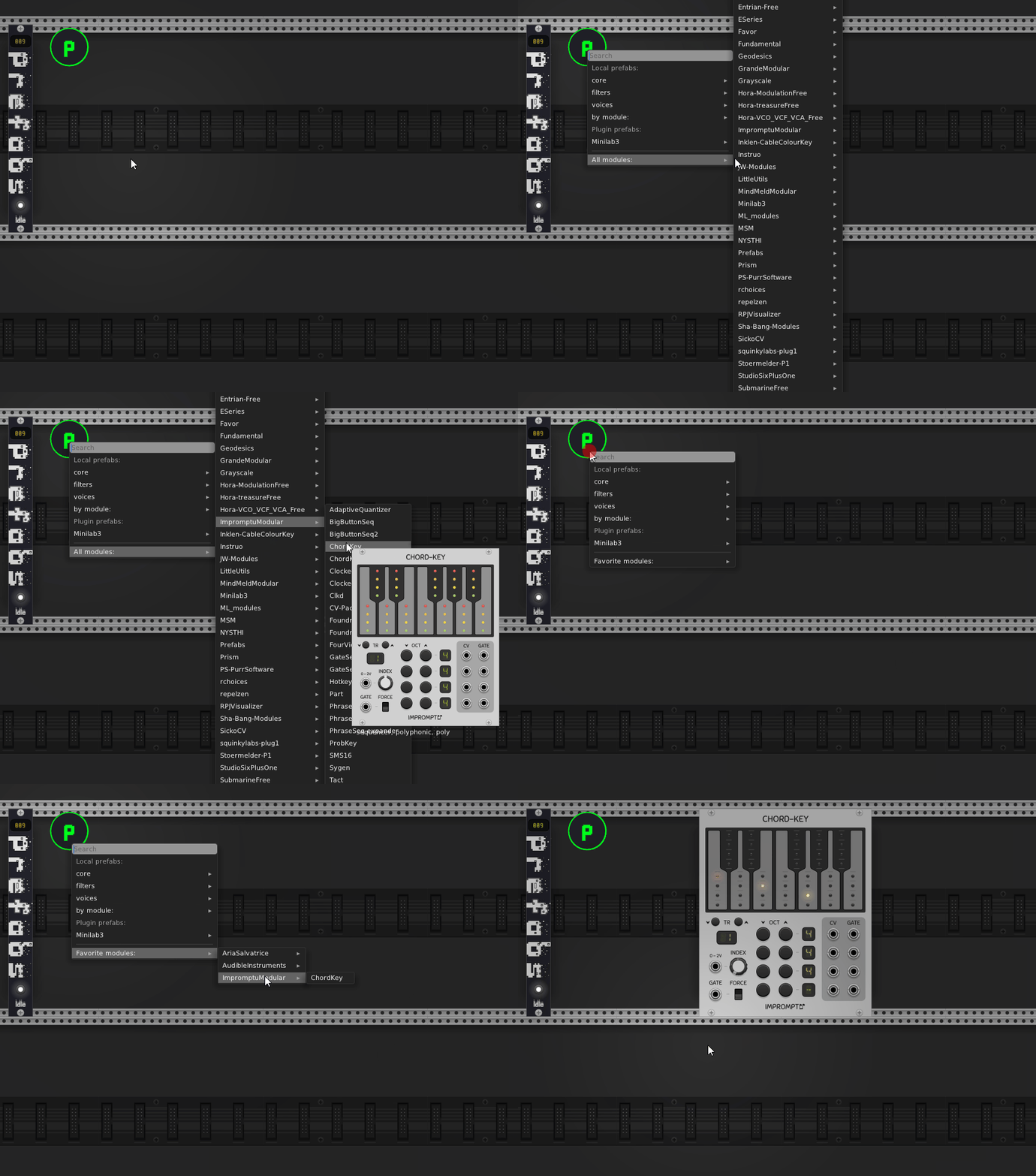
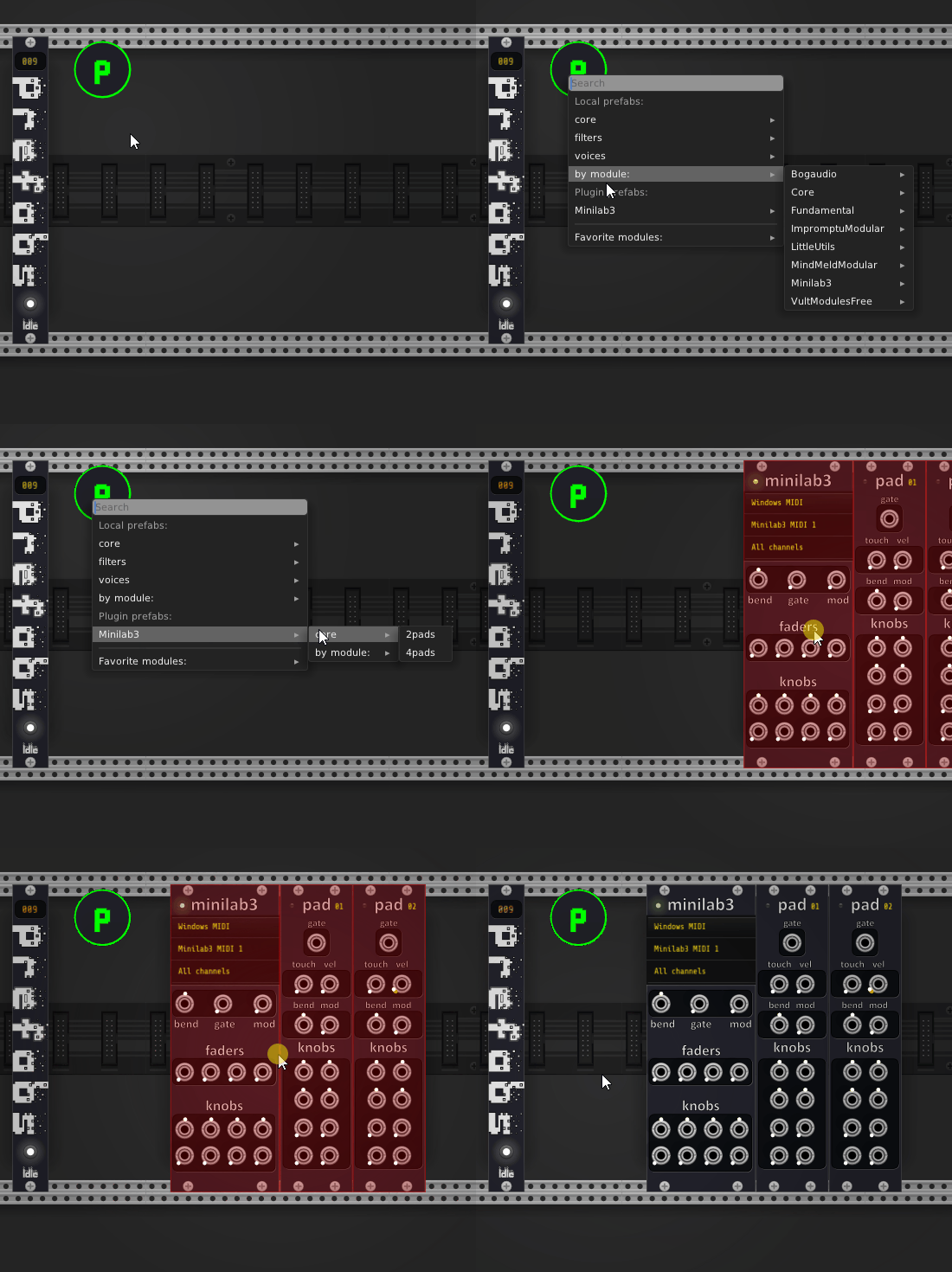
Plugin-provided prefabs and modules are all fair game:
Settings
Right-click the widget for its settings:
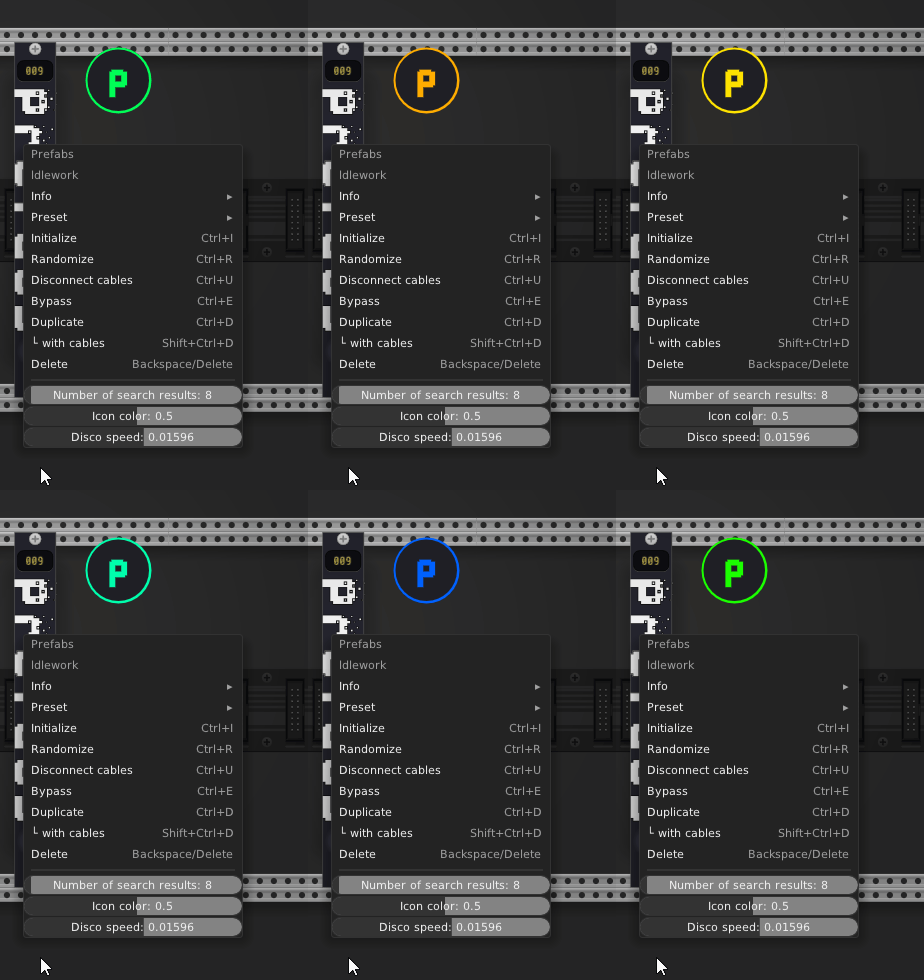
- Widget color — recolor the icon to suit your rack.
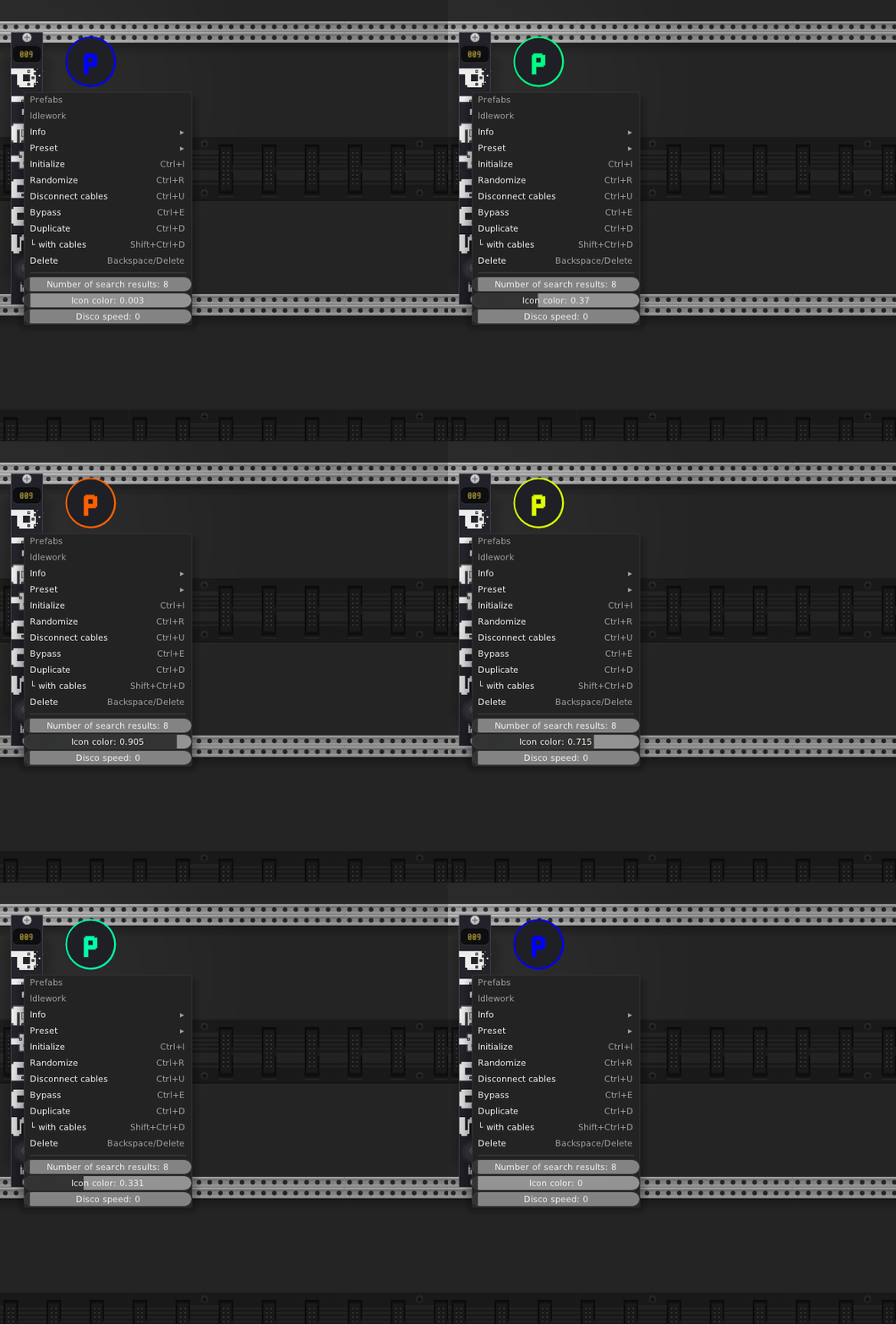
- Disco mode — let the widget cycle colors continuously, just for fun.